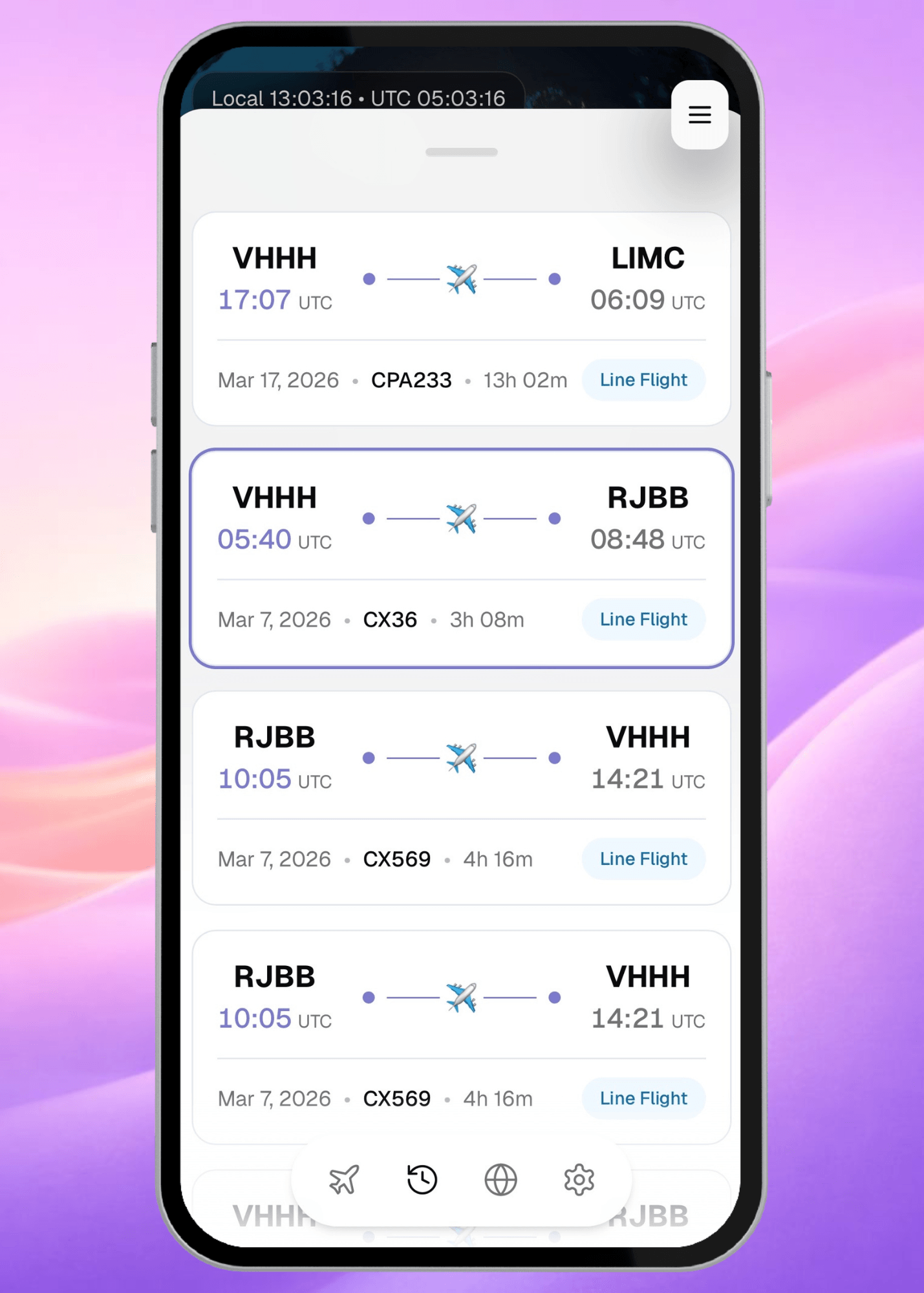
Update: Roster Importing and Auto Logging

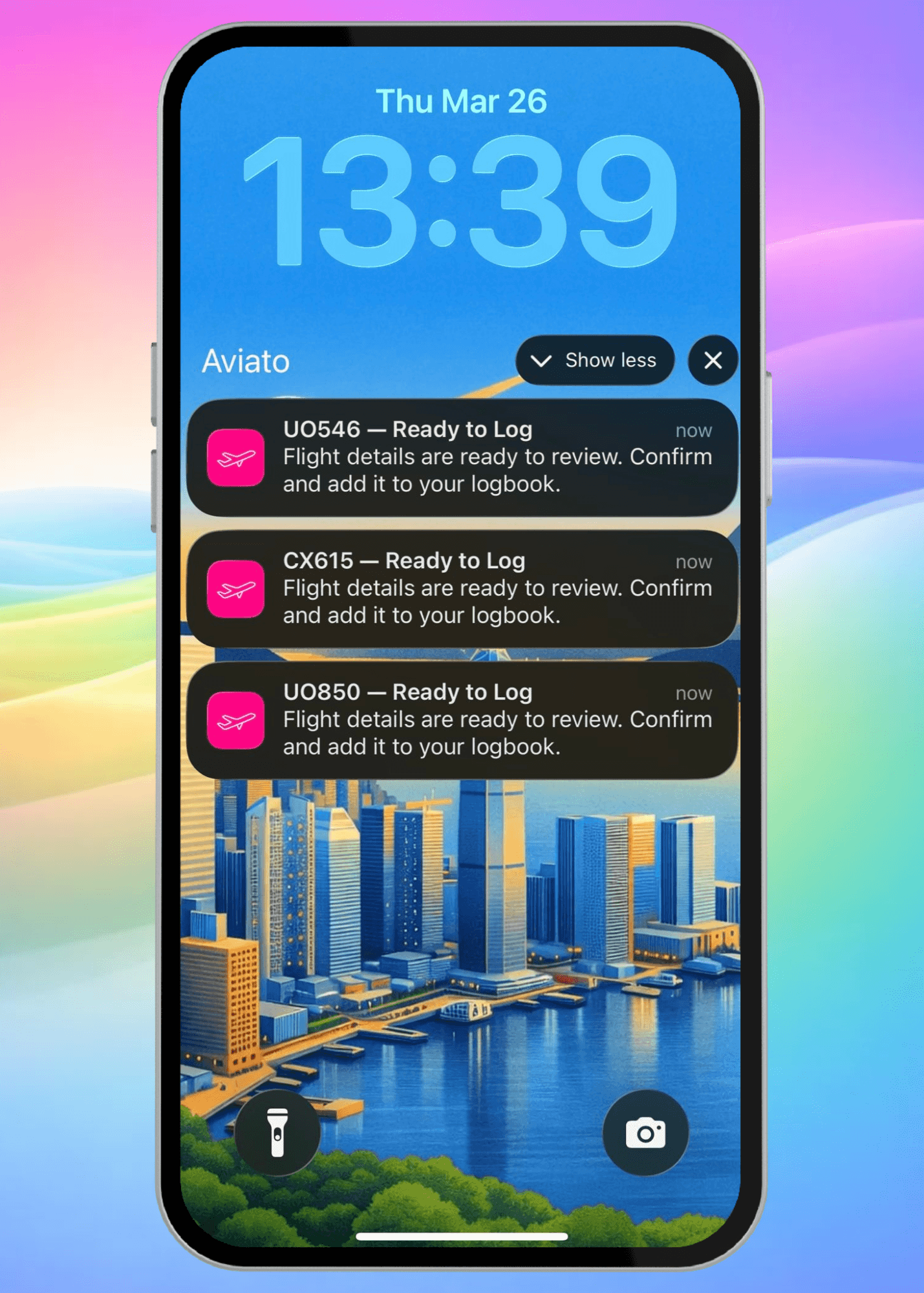
Aviato now imports your roster and logs your flights automatically. Here's exactly how it works.
Update Required
To access roster importing, auto-logging, and flight sharing, make sure you're running the most recent version of Aviato.
Step 1 — Import your roster or search a flight
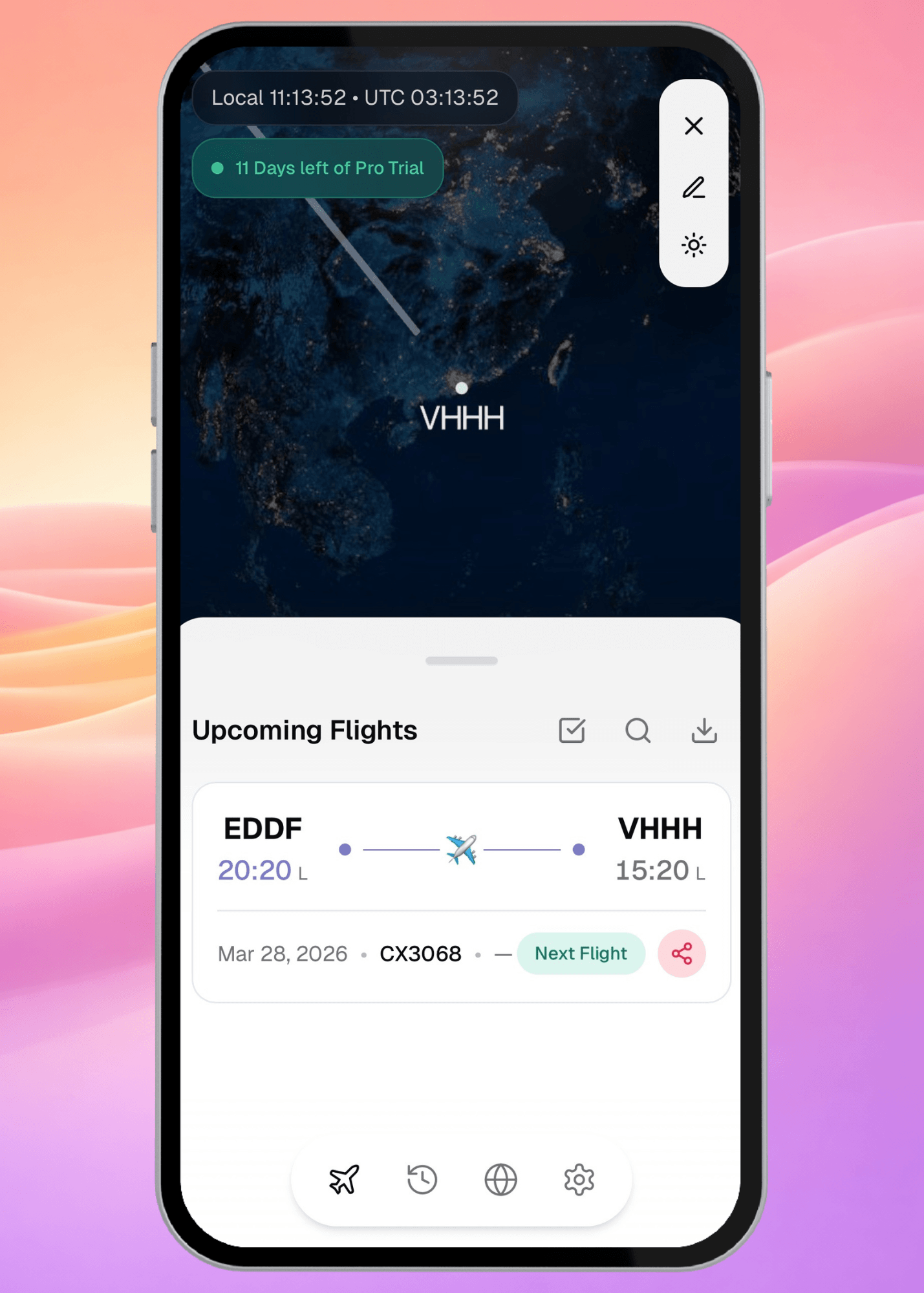
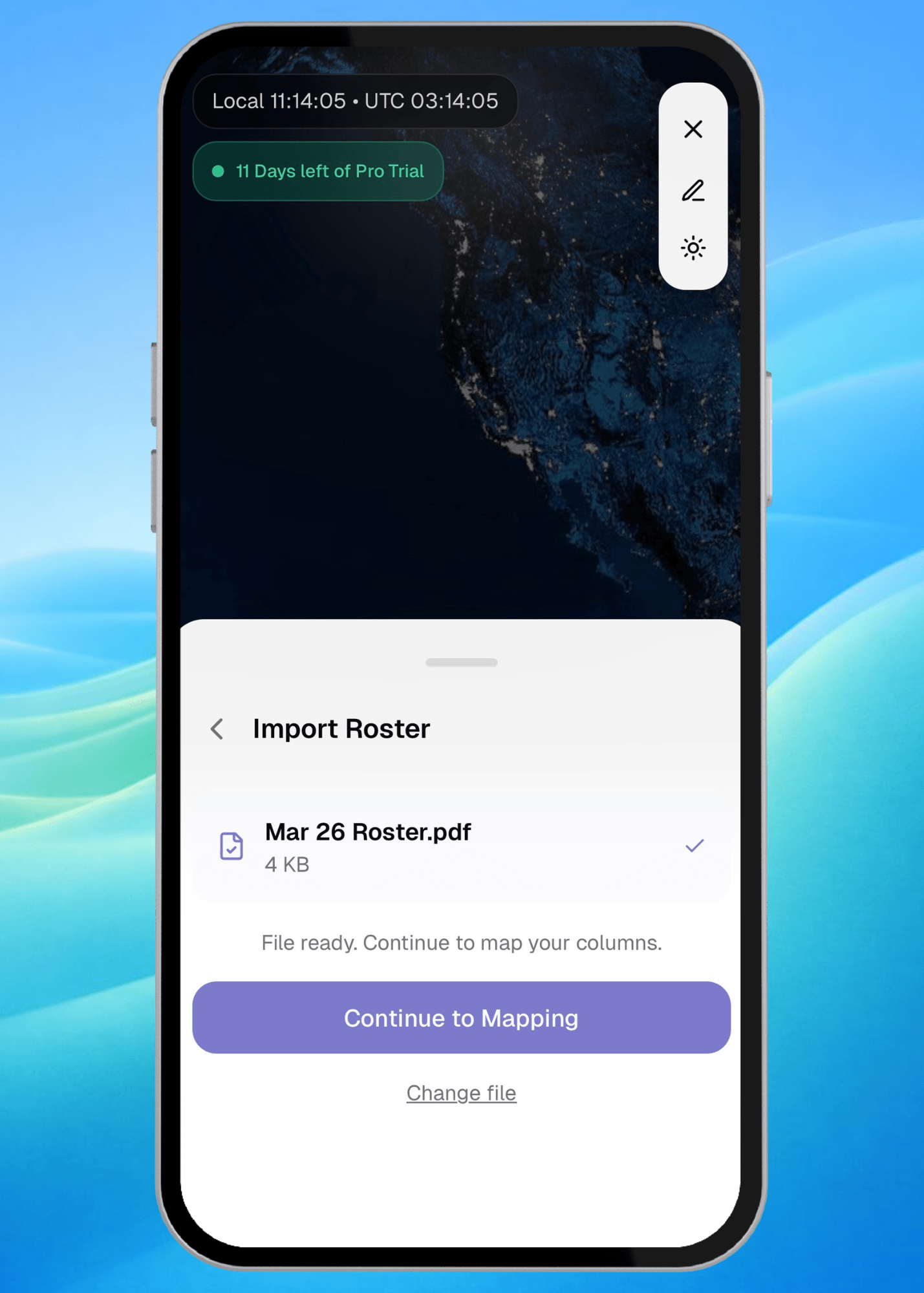
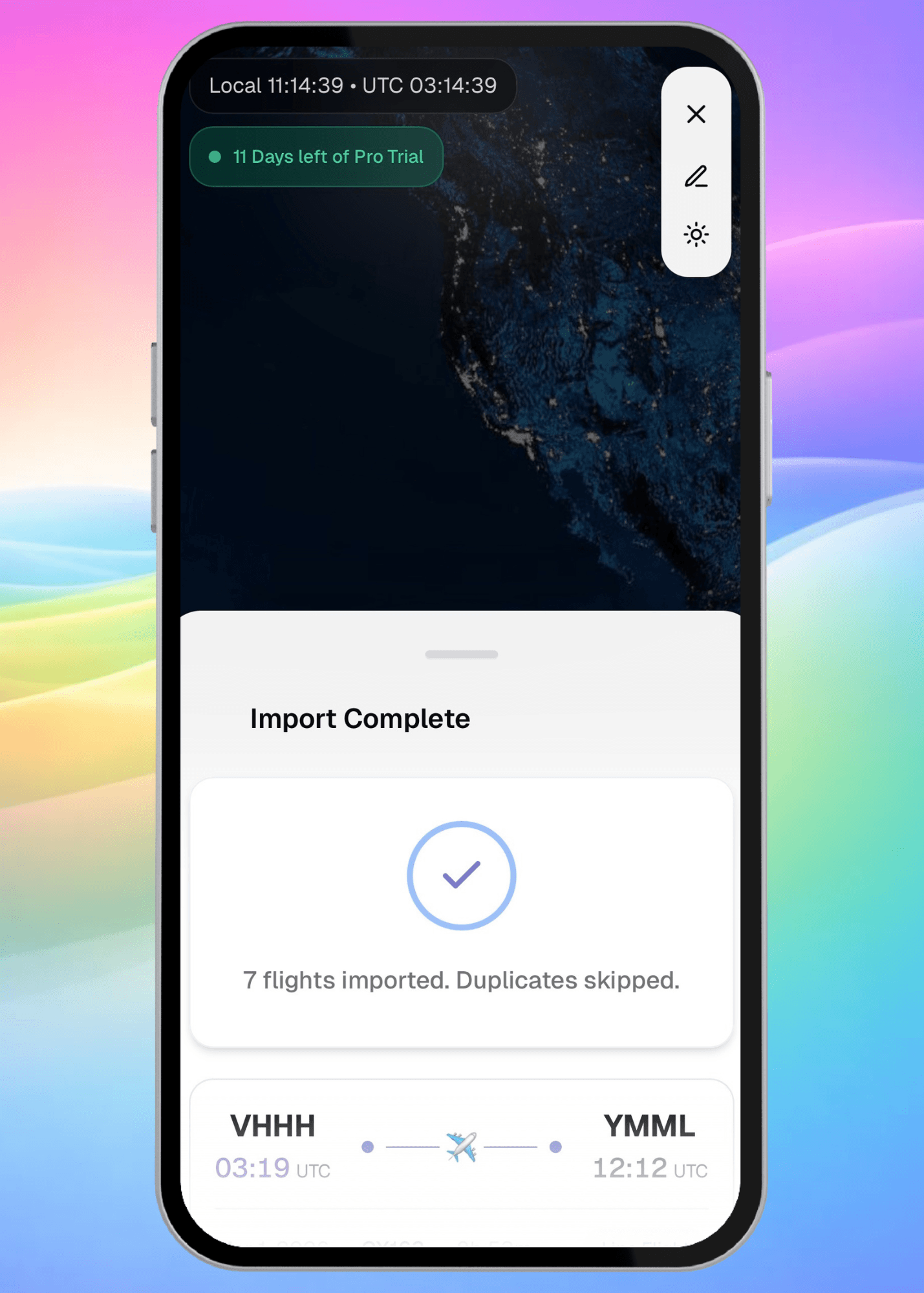
Add flights manually by searching a flight number and date, or import your roster directly as a PDF or CSV. From your dashboard select the import button next to the magnifying glass and follow through the importing flow.
Step 2 — Get real-time notifications
Once your flights are in, Aviato keeps you up to date. Get delay notifications, gate changes, and live updates so you're never caught off guard before your next flight.

Step 3 — Aviato auto-logs your flight
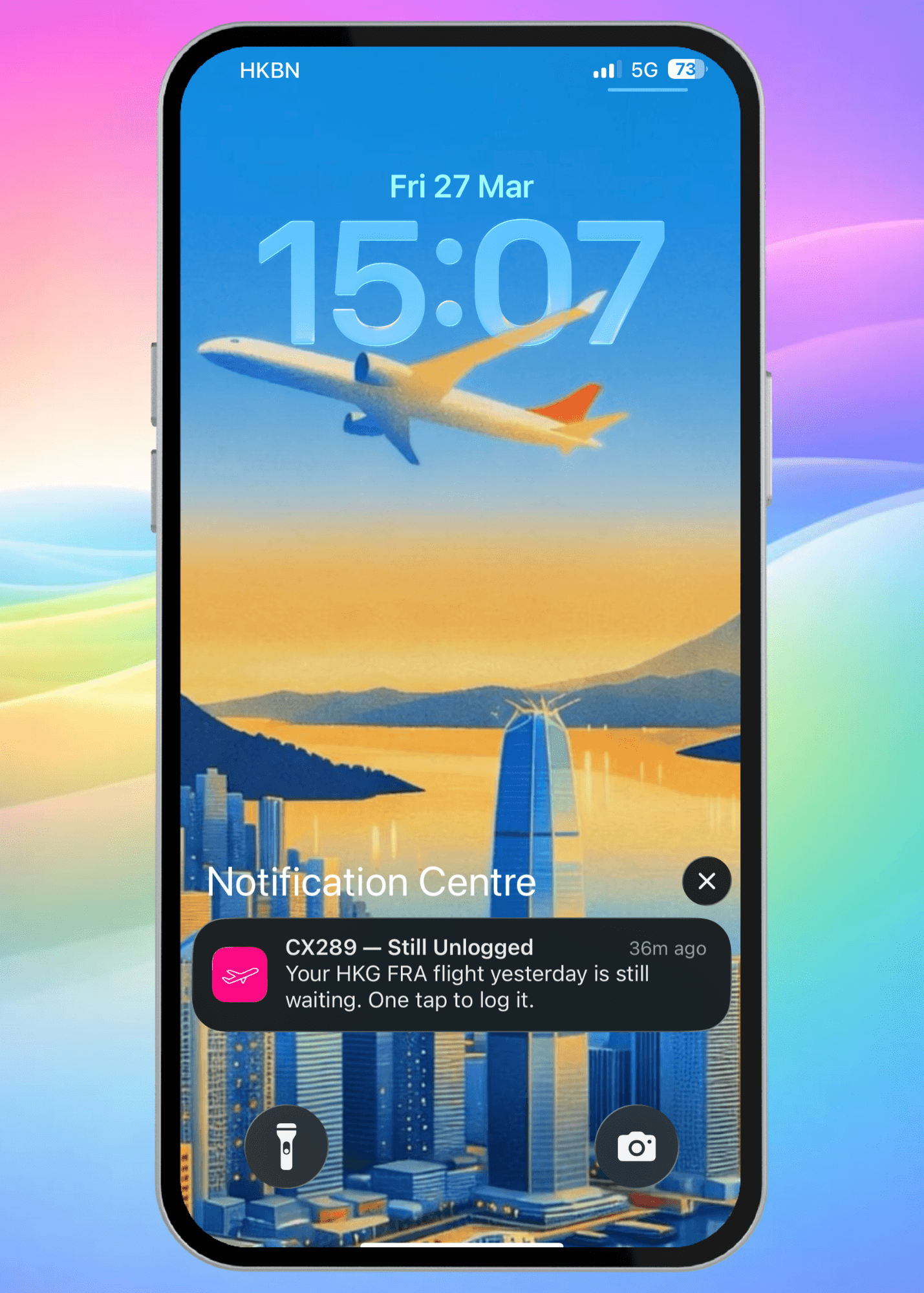
After your flight completes, Aviato detects it and logs it automatically within a 24-hour window. Routes, times, and day/night splits are all handled in the background, no manual entry needed.
Step 4 — Review and confirm
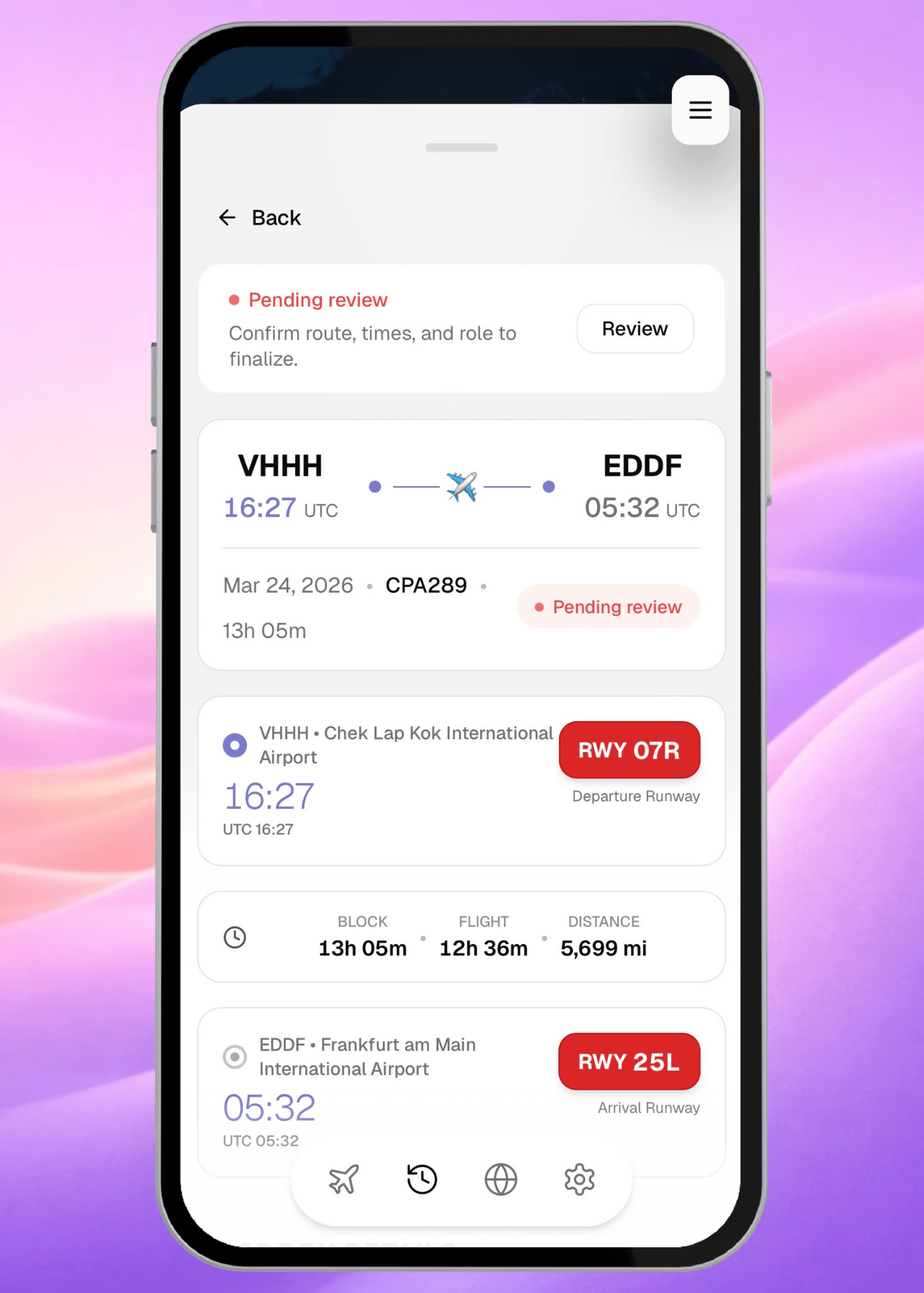
Open the flight entry to check everything looks right. The details will already be there, aircraft type, block times, sector information ready for you to confirm with a tap.
Step 5 — Done
Your logbook is current. No chasing, no backfilling, no spreadsheets.